
There is always something worth photographing in Thailand. It might be a sunset on the beach, a busy market, a temple you discovered by accident, or a short video of friends enjoying dinner together.
Then, just as you want to take another picture, your iPhone tells you the storage is almost full.
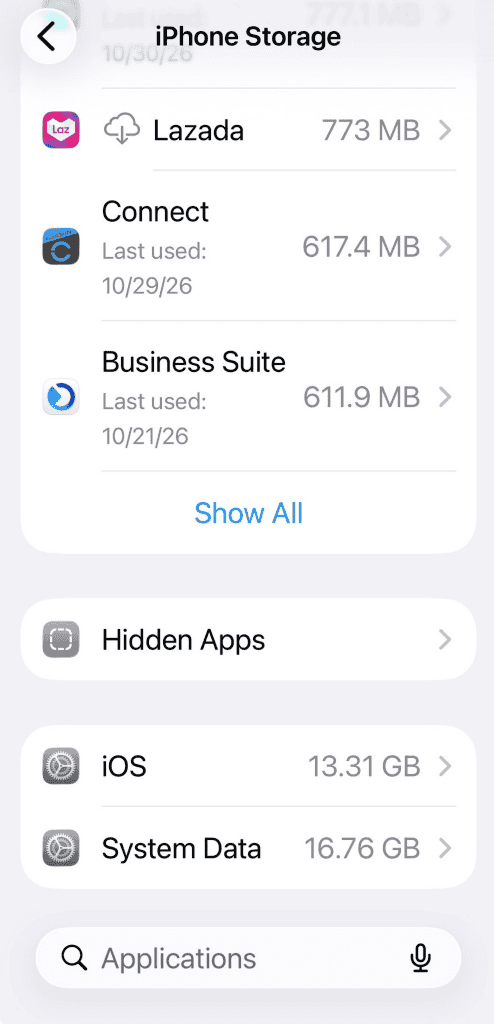
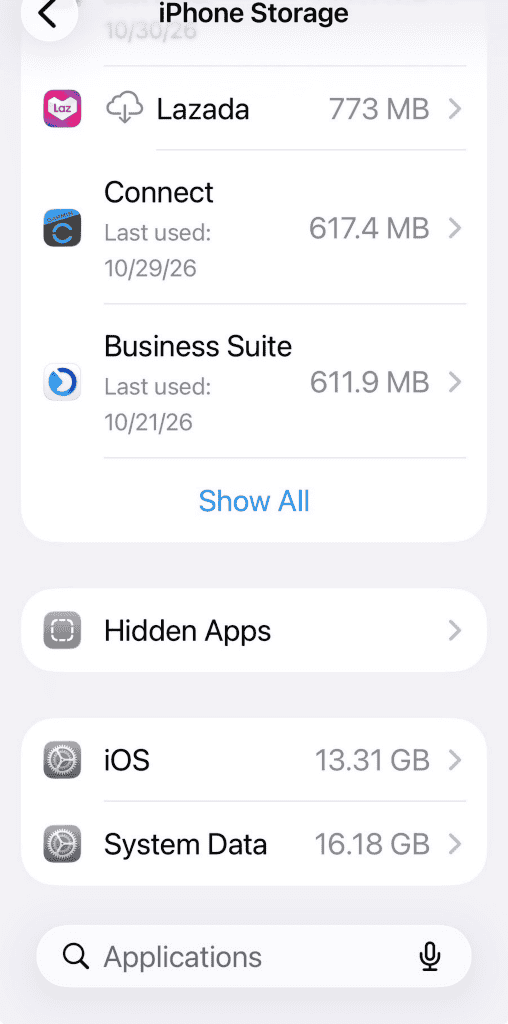
Photos and videos can take up a lot of room, but sometimes another part of the phone catches your attention: System Data. When I checked mine, it was using more than 16 GB. In the two screenshots below, you can see that it went down from 16.76 GB to 16.18 GB—a difference of about 0.58 GB.
That is a modest saving, but if your System Data has grown to 20 GB or more and you are running out of space, it may be worth checking a few things.
What Is iPhone System Data?
System Data includes files your iPhone uses while running, such as certain caches, logs and other system resources. The amount can change over time as you use your phone.
A large number does not automatically mean something is corrupted. There is no single “correct” amount for every iPhone, and 20 GB is not a fault threshold. What matters most is whether you still have enough free space for the things you want to keep.
Also, the iOS and System Data figures shown in iPhone Storage are separate categories. In my screenshots, iOS stayed at 13.31 GB while System Data changed.
Start by Checking Your Storage
Open:
Settings → General → iPhone Storage
Give the page a moment to load. You will see how much space is in use, along with a list of apps and any storage recommendations available on your phone.
Have a look at what is actually taking up room before you delete anything. Sometimes a few downloaded videos or an app you no longer use are easier to deal with than System Data.
1. Look for a Downloaded iOS Update
If an update has been downloaded but has not been installed, it may appear in the list on the iPhone Storage screen.
Tap the update if you see it, then select Delete Update. You can download it again later through Settings → General → Software Update.
This removes the downloaded update file, not the version of iOS already running on your phone. It will not necessarily reduce the System Data figure, but it may free some space.
2. Restart Your iPhone
A simple restart is worth trying if your storage display seems slow or your phone is behaving strangely.
You can turn the phone off through Settings → General → Shut Down, then turn it back on. After it has restarted, check iPhone Storage again.
A restart is not guaranteed to clear System Data. Storage figures can also change on their own, so my screenshots show a small reduction rather than proof that one particular action caused it.
3. Clear Safari Website Data
Websites can leave data on your phone as you browse. If you are comfortable clearing it, open:
Settings → Apps → Safari → Clear History and Website Data
On some older versions of iOS, Safari may appear directly in Settings.
Be aware that clearing website data can remove browsing history and cookies and may sign you out of websites. It can free some space, although it may not make a noticeable difference to the System Data figure.
4. Review Downloads and Unused Apps
Before your next day out, take a look at downloaded films, music, podcasts and other files you no longer need. These can use a surprising amount of space, especially if you saved them for a long flight.
In iPhone Storage, you can also select an app and choose Offload App if the option is available. This removes the app itself while keeping its documents and data, so you can reinstall it later.
These steps free phone storage; they do not necessarily reduce System Data.
5. Protect Your Photos Before Removing Anything
Your pictures may be more valuable than the phone itself, especially after a trip you have been looking forward to for years. Make sure you have a separate copy of important photos and videos on a computer, external drive or another backup service, and check that the copies open properly.
If you use iCloud Photos, Optimize iPhone Storage can keep smaller versions on your phone while the full-resolution originals remain in iCloud. You will need enough iCloud storage, and uploading can take time.
One important detail: iCloud Photos synchronizes your library. If you delete a photo from your iPhone, it is also deleted from iCloud Photos and your other synced devices. Do not use the delete button to make space unless you are sure you no longer want the picture or have a separate verified copy.
A Little Space Can Make a Difference
My System Data did not suddenly disappear, but it did go down a little. Your results may be different, and some system storage is a normal part of using an iPhone.
It is worth checking your storage before heading out for the day. That way, when you see something you want to remember—whether it is a beautiful view or a funny moment at the market—you have room to save it.
Apple also has a useful guide to checking iPhone storage.
